Moving from Salla or Zid to WooCommerce Without Losing SEO
A step-by-step plan to move a store from Salla or Zid to WooCommerce: export your data, map every URL, set up 301 redirects and protect your Google rankings.
In this article
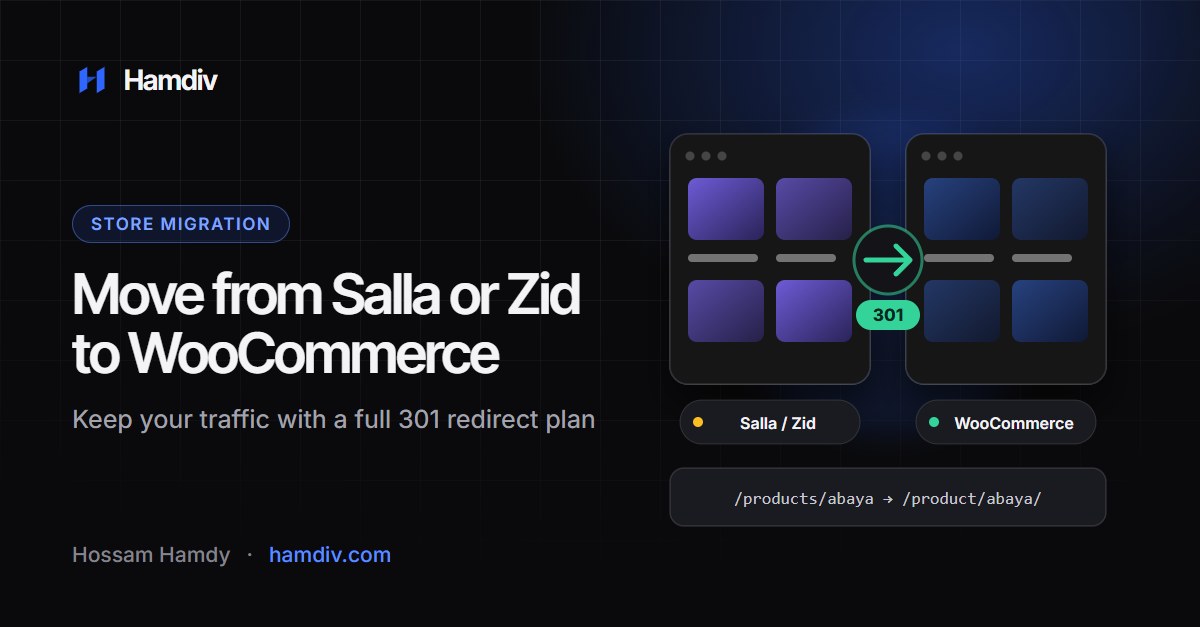
You can move a store from Salla or Zid to WooCommerce without losing your Google rankings if you keep three things intact: your domain, the content of your product and category pages, and a 301 redirect from every old URL to its new equivalent. Most traffic loss after a migration comes from missing redirects, not from the platform change itself.
This guide is the plan I follow when I move stores to WooCommerce for clients in Saudi Arabia and the Gulf: what you can bring with you, how to map and redirect URLs, what to test, and what to watch after launch. If you are still deciding whether to move at all, read my comparison of WooCommerce vs Salla vs Zid first.
Key takeaways
- Keep your domain. If your store already runs on your own domain, keep it. Moving to a new domain at the same time adds risk you do not need.
- Redirects protect rankings. Every old product, category and page URL needs a 301 redirect to the closest new page, not to the home page.
- Customer passwords cannot be moved. Plan a friendly “set your new password” email instead of surprising customers at login.
- Design and apps do not transfer. You rebuild the theme and replace each app with a WooCommerce plugin or custom feature.
- Test on a staging copy first, then launch on a quiet day and watch Search Console closely for the following weeks.
When moving to WooCommerce makes sense
A hosted platform is a great place to start. Stores usually move when they hit one of these limits:
- Customization: the checkout, pricing rules, bundles, B2B accounts or product options you need are not possible, or only through a stack of paid apps.
- SEO and speed control: you want full control of URLs, structured data, redirects, indexing and page speed.
- Ownership: you want the store’s data, code and hosting under your control, and the freedom to change developers.
- Integrations: you need a direct link to an ERP, accounting system, warehouse or custom delivery logic.
- Cost at scale: plan tiers and app subscriptions add up as the store grows.
If none of these apply, staying on your current platform can be the smarter choice. A migration costs time and money, so do it for a clear reason.
What you can and cannot bring with you
| Data | Can it move? | Notes |
|---|---|---|
| Products, prices, SKUs, stock | Yes | Usually through a CSV export and the WooCommerce importer |
| Product variations and options | Yes, with care | Sizes and colors need to be mapped to WooCommerce attributes |
| Product images | Yes | Imported by URL or uploaded, then optimized |
| Categories and their descriptions | Yes | Rebuild the structure before importing products |
| Customers (name, email, phone, address) | Usually | Depends on what the export gives you; respect privacy rules |
| Customer passwords | No | Passwords are stored encrypted and cannot be transferred |
| Order history | Partly | Often exported for records; importing it into WooCommerce may need a plugin or custom script |
| Reviews | Sometimes | Depends on export options; worth keeping for trust and rich results |
| Coupons and promotions | Recreate | Rebuild them in WooCommerce |
| Theme and design | No | Rebuilt as a WooCommerce theme |
| Apps | No | Replaced by plugins or custom features |
Check what your platform’s dashboard can export today, and download everything before you start, even data you think you will not need.
Step 1: Audit and benchmark the current store
Before you change anything, record how the store performs now. You need this baseline to spot problems after launch.
- Collect every URL. Download your current sitemap (usually at
/sitemap.xmlon your store domain) and crawl the store with an SEO crawler to catch pages the sitemap misses. - Export your top pages from Google Search Console: the pages and queries that bring the most clicks over the last 3 to 6 months.
- Save titles, meta descriptions and headings for your important pages, so you can carry them over.
- Note your analytics baseline: sessions, conversion rate and revenue by landing page.
- List every app and integration you use, and what each one does, so nothing is forgotten.
Step 2: Export your data
From the Salla or Zid dashboard, export products, categories, customers and orders to CSV files where available. Open each file and check:
- that Arabic text is readable (save as UTF-8 if it is not),
- that variations, SKUs and stock are present,
- that image links work,
- and that nothing important is missing compared with what you see in the dashboard.
Keep a copy of the raw exports untouched. Clean a separate copy for importing.
Step 3: Build the new WooCommerce store on staging
Build the new store on a staging site that search engines cannot index (block it with a password rather than relying only on a “noindex” setting).
- Choose solid hosting in or near the region your customers are in.
- Use a fast theme that handles Arabic and right-to-left properly. My guide to building an Arabic WordPress website covers fonts and RTL details.
- Install only the plugins you need. Every extra plugin is code to maintain and a potential slowdown.
- Recreate your category structure before importing products.
Step 4: Import products and content
WooCommerce has a built-in CSV importer under Products → Import. Map each column from your export to the matching WooCommerce field, import a small batch first, check the result, then import the rest.
Pay special attention to:
- Variable products: each size or color becomes a variation with its own price, stock and SKU.
- Images: check that every product has its images and that they are compressed and in a modern format.
- Descriptions: keep the same text where it ranks well. Changing proven content during a migration makes it hard to tell what caused any ranking change.
- Pages and blog posts: move your About, policy pages and any articles, with their text intact.
Step 5: Map every old URL to a new one
This is the step that decides whether you keep your rankings. Build a spreadsheet with two columns: the old URL and the new URL.
- Products: WooCommerce uses
/product/product-slug/by default. You can change the product base under Settings → Permalinks. Keep the same slugs where possible so the mapping is simple. - Categories: WooCommerce uses
/product-category/category-slug/by default, and you can customize it too. - Pages and articles: map each one to its new address.
- Removed items: if a product no longer exists, redirect it to the closest category or similar product, not to the home page.
The goal is a one-to-one map: every URL that had traffic or links has exactly one sensible destination.
Step 6: Set up 301 redirects
A 301 redirect tells browsers and Google that a page has moved permanently, and it passes most of the old page’s ranking signals to the new one.
- Add redirects with a dedicated plugin (such as Redirection) or at the server level (Nginx or Apache rules), which is faster for large lists.
- Avoid redirect chains: each old URL should go straight to its final destination in one hop.
- Test a sample of old URLs and confirm each returns a
301status and lands on the right page. - Keep the redirects in place permanently, not just for a few weeks.
One important limit: redirects only work on a domain you control. If your old store ran on the platform’s own subdomain instead of your own domain, you usually cannot add redirects there, so start using your own domain as early as possible.
Step 7: Rebuild on-page SEO
Carry over everything that helped the old pages rank, and improve what the old platform did not let you control:
- Titles and meta descriptions for products, categories and key pages.
- Structured data: product schema with price, availability and reviews, plus breadcrumbs. My guide to schema markup for WordPress and WooCommerce shows how.
- Canonical tags to avoid duplicate pages from filters and sorting.
- Internal links between related products, categories and articles.
- Bilingual stores: set up hreflang between the Arabic and English versions.
For product and category page details, see my guide to WooCommerce SEO for product pages.
Step 8: Payments, shipping, taxes and emails
Your store must be able to take money and deliver orders from the first hour:
- Set up a payment gateway with mada and Apple Pay, and add Tabby or Tamara if you use them. My guide to WooCommerce payment gateways in Saudi Arabia walks through the setup.
- Configure shipping zones, rates and carrier integrations.
- Set the currency to SAR and configure VAT if you are registered.
- Customize order emails in Arabic and English, and test that they arrive.
Step 9: Test everything before launch
Run through this checklist on staging:
- Place real test orders with every payment method, including refunds.
- Test the full journey on mobile: search, product, cart, checkout, confirmation email.
- Check page speed on key templates; my guide to speeding up a WooCommerce store lists the usual fixes.
- Test a sample of redirects from your mapping sheet.
- Check that product schema validates and that titles and descriptions are filled.
- Confirm the policies, contact details and legal pages are in place.
Step 10: Launch day
- Pick a quiet time, such as a weekday morning, not the start of a sale.
- Freeze changes on the old store shortly before the switch, and export the latest orders and customers.
- Point the domain to the new hosting and remove the staging password protection.
- Check the live site immediately: home page, a few products, checkout and several redirects.
- Submit the new sitemap in Google Search Console and in Bing Webmaster Tools.
- Email your customers about the new store and how to set a new password.
After launch: what to monitor
Expect some movement in rankings for a few weeks while Google recrawls the store. Watch closely:
- Search Console: the Pages report for new 404 errors and the Performance report for clicks on your top pages.
- 404 logs: add redirects for any old URLs you missed.
- Analytics: conversion rate and revenue compared with your baseline.
- Payments: failed payment rates in your gateway dashboard.
Small dips that recover within weeks are normal. A sharp, lasting drop usually points to missing redirects, blocked indexing or pages that lost their content, and all three can be fixed.
How long does a migration take?
It depends on the number of products, how complex the variations are, how much custom design you want, and how many integrations you need. A small catalog with a clean design can move in a few weeks; a large store with custom features takes longer. The planning and testing steps above are not optional either way, because they are what protects your revenue. For budget factors, see WordPress website cost in Saudi Arabia.
Frequently asked questions
Will I lose my Google rankings if I move from Salla or Zid to WooCommerce?
Not if the migration is planned well. Keep your domain, keep your page content, and add a 301 redirect from every old URL to its new equivalent. Some movement for a few weeks is normal while Google recrawls the store.
Can I keep my domain when moving to WooCommerce?
Yes. If your store already uses your own domain, you point that domain to your new WooCommerce hosting. Keeping the same domain is the safest way to protect your rankings.
Can my customers keep their passwords?
No. Passwords are stored encrypted and cannot be transferred between platforms. Customers keep their accounts and order details where those are migrated, but they set a new password, usually through a welcome email with a reset link.
Can I move my order history?
Usually you can export orders for your records. Importing them into WooCommerce so they appear in customer accounts may need a migration plugin or a custom script, depending on what your platform’s export contains.
Do I need a developer to migrate my store?
For a small store with simple products, a technical owner can follow this plan. For stores with many variations, custom features, integrations or strong search traffic, a developer reduces the risk of losing sales and rankings during the move.
Conclusion
Moving from Salla or Zid to WooCommerce gives you more control over design, features, SEO and your data, but the move itself has to be planned. Keep your domain, map every URL, set up 301 redirects, test on staging, and watch Search Console after launch, and your rankings will follow you to the new store.
I am Hossam Hamdy, a WordPress and e-commerce developer who builds and migrates stores on WooCommerce, Salla and Zid for businesses in Saudi Arabia, the UAE and Egypt. If you are planning a move, contact me through the contact section and I will help you plan and run the migration without losing your traffic.