Schema Markup for WordPress and WooCommerce: A Practical Guide
Schema markup for WordPress explained: which structured data types matter, plugin vs manual JSON-LD, a Product example, and how to test it before launch.
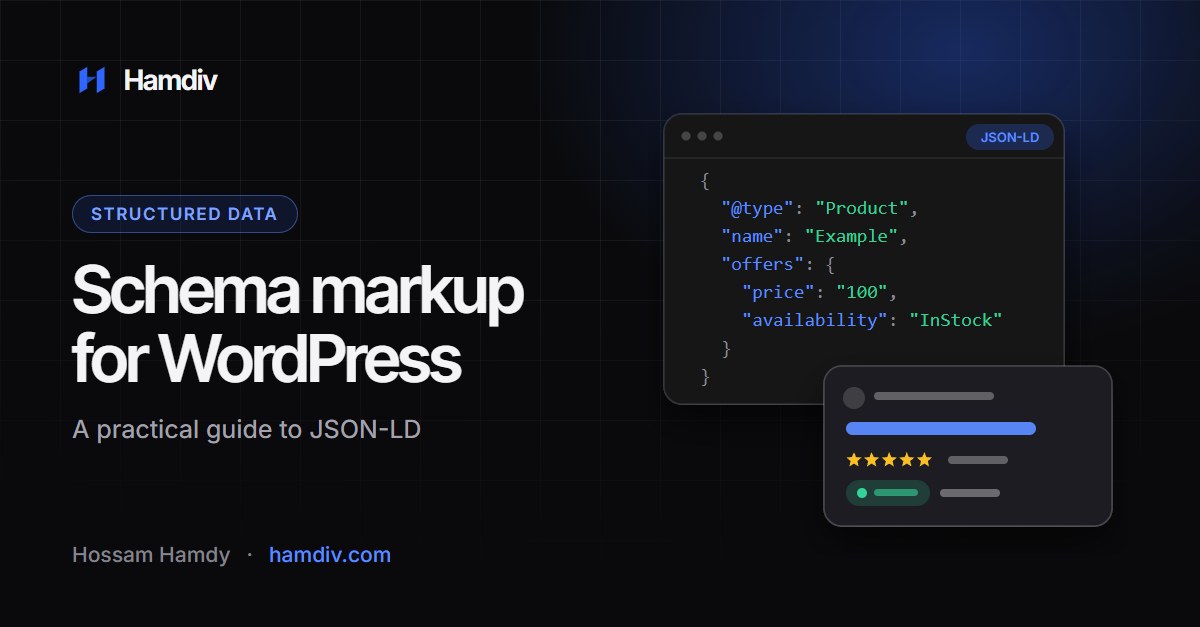
In this article
Schema markup for WordPress is a block of structured data, usually written as JSON-LD, that tells search engines exactly what a page is: a product, an article, a business, a list of breadcrumbs. You can add it with an SEO plugin or by writing it yourself, and then verify it with Google’s Rich Results Test. It helps search engines understand your content and can make pages eligible for rich results, but it never guarantees them.
Key takeaways
- Structured data describes what is already visible on the page. It is not a place to add claims users cannot see.
- JSON-LD is the format Google recommends, and it is the easiest to maintain in WordPress.
- A good SEO plugin covers most needs (Organization, Article, BreadcrumbList). WooCommerce stores need extra care with Product and Offer data.
- Rich result eligibility changes over time, so always check Google’s current documentation before building around a feature.
- Test every template with the Rich Results Test and the Schema Markup Validator, then watch Search Console.
What structured data and JSON-LD actually are
Structured data is a standard vocabulary, maintained at schema.org, for labelling content. Instead of leaving a crawler to guess that “SAR 100” is a price, you state it explicitly: this is an Offer, this is its price, this is its currency.
JSON-LD is the most common way to write it. It sits inside a <script type="application/ld+json"> tag, separate from your visible HTML, which makes it easy to generate from PHP and easy to debug. Google’s introduction to structured data explains the supported formats and why JSON-LD is recommended.
The schema types that matter for most WordPress sites
You do not need dozens of types. Most sites need a small, accurate set.
Organization or LocalBusiness
Describes your company: name, logo, URL, contact details and social profiles. Usually output once site-wide. If you serve a physical location, LocalBusiness (a subtype of Organization) can add address and opening hours.
Person
Useful for personal brands, portfolios and author pages. It connects an author’s name to their profile page and social accounts.
Article and BlogPosting
For blog posts and news: headline, author, publish and modify dates, and image. Make sure the dates match what the page shows.
BreadcrumbList
Mirrors your breadcrumb trail so search engines understand site hierarchy. It is low risk and widely supported by SEO plugins.
Product, Offer and Review
For WooCommerce stores. Product holds name, image, description, SKU and brand. Offer holds price, currency, availability and URL. Review and AggregateRating belong only where real reviews are displayed on the page. The guide to SEO for WooCommerce product and category pages covers how this fits into the wider page.
FAQPage
Marks up question-and-answer content. Be careful here: Google has restricted FAQ rich results to a limited set of sites, so most businesses should not expect an FAQ snippet. Rich result eligibility changes, so check Google’s documentation rather than relying on older advice. The markup is still valid, and a visible FAQ section remains useful for readers.
Plugin vs manual: which approach fits
| Approach | Best for | Strengths | Weaknesses |
|---|---|---|---|
| SEO plugin (Yoast SEO, Rank Math, etc.) | Most business sites and blogs | Fast setup, sensible defaults, graph connects entities automatically | Limited control; defaults may not match your content |
| WooCommerce built-in output | Basic product data | Outputs basic Product and Offer data | May miss brand, GTIN or shipping details; can overlap with a plugin |
| Dedicated schema plugin | Many custom types | Visual mapping of fields to schema | Another plugin to maintain; risk of duplicates |
| Manual JSON-LD in your theme | Custom builds, special cases | Full control, minimal overhead | Needs developer time; must be kept in sync with content |
For most sites the practical answer is: let one SEO plugin handle Organization, Article and BreadcrumbList, then add or adjust only what is missing. Manual code makes sense when a custom post type or a special product structure has no plugin support. This is the kind of clean, focused work I do on custom builds instead of stacking more plugins; see my profile for how I approach WordPress projects.
A valid Product JSON-LD example
Below is a complete example for a clearly fake product. Every value is a placeholder, so replace them with real data that matches what shoppers see on the page.
{
  "@context": "https://schema.org",
  "@type": "Product",
  "name": "Example Widget Pro",
  "image": [
    "https://www.example.com/images/example-widget-pro.jpg"
  ],
  "description": "A placeholder product used to illustrate Product markup.",
  "sku": "EX-WIDGET-001",
  "brand": {
    "@type": "Brand",
    "name": "Example Brand"
  },
  "offers": {
    "@type": "Offer",
    "url": "https://www.example.com/product/example-widget-pro/",
    "priceCurrency": "USD",
    "price": "100.00",
    "availability": "https://schema.org/InStock",
    "itemCondition": "https://schema.org/NewCondition"
  },
  "aggregateRating": {
    "@type": "AggregateRating",
    "ratingValue": "4.5",
    "reviewCount": "10"
  }
}
A few notes on this example. The price is a plain number written as a string, with no currency symbol or thousands separator, and the currency lives in priceCurrency (for example SAR, AED, EGP or USD). The availability value is a full schema.org URL. Include aggregateRating only if the page genuinely displays those ratings; remove it otherwise. The full property list is on schema.org/Product.
If you add this to a WooCommerce store by hand, first confirm WooCommerce or your SEO plugin is not already printing a Product block for the same page. Two competing Product entities is one of the most common mistakes.
How to test your markup
- Rich Results Test (search.google.com/test/rich-results): shows which Google rich result features your page is eligible for and flags errors and warnings. Test the live URL, not just pasted code.
- Schema Markup Validator (validator.schema.org): checks general schema.org validity, including types Google does not use for rich results.
- Google Search Console: the Enhancements reports show errors across your whole site after Google has crawled it, which catches template-level problems at scale.
- View source: search for
application/ld+jsonand read what is actually output. Plugins can print more than you expect.
Test one example of each template: a post, a page, a product, a category. If the template is right, every page using it is right.
Common schema mistakes to avoid
Markup that does not match visible content
If your JSON-LD says a product has 200 reviews but the page shows none, that is misleading markup, and Google’s guidelines say structured data must represent content that users can see. The same goes for prices, availability and FAQ answers.
Duplicate or conflicting entities
Running an SEO plugin, WooCommerce’s own output and a schema plugin together often produces two Product blocks, or two Organizations with different names. Pick one source of truth per type and disable the others.
Missing required properties
Product markup without a valid offer price, or Article markup without a headline, will show warnings or errors. Required and recommended properties are listed in Google’s documentation for each feature.
Stale data
Hard-coded prices or availability in a manual snippet drift out of date the moment stock changes. For stores, generate Offer data dynamically from WooCommerce, never from a static block.
Marking up everything
More schema is not better schema. Add types that reflect real content and serve a purpose. Unused or inaccurate types add noise and risk.
If you are working through a wider audit, the WordPress SEO checklist places structured data alongside the other technical basics.
Frequently asked questions
Does schema markup improve my Google rankings?
Not directly, as far as Google has stated. Structured data helps search engines understand your content and can make pages eligible for rich results, which may improve how your listing looks. No one can promise a ranking boost from it.
Do I need a plugin to add schema in WordPress?
No, but a plugin is the simplest route for common types like Organization, Article and BreadcrumbList. Manual JSON-LD is better when you need a custom structure or want to avoid extra plugins. Either way, avoid running two sources for the same type.
Will adding FAQ schema give me an FAQ snippet?
Probably not for most sites. Google has limited FAQ rich results to certain sites, and eligibility can change, so check Google’s current structured data documentation. You can still use a visible FAQ section for your readers.
How do I check if my schema is working?
Run the live URL through the Rich Results Test and the Schema Markup Validator, then review the Enhancements reports in Google Search Console. Also view the page source to confirm only one block exists for each entity.
Why does my product schema show duplicate errors?
Usually because WooCommerce, an SEO plugin and a separate schema plugin are all outputting Product data. Disable the extra sources so only one Product entity is printed per page.
Conclusion
Schema markup for WordPress is worth doing carefully rather than quickly: pick the few types that match your real content, use one source per type, make sure everything matches what visitors see, and test each template. If you would like help auditing or implementing structured data on a WordPress or WooCommerce site, get in touch through the contact section.